Transmitting a Test Message Command
The Ping and Range tabs on the Transmit page can be used for connectivity and ranging tests in the same test setup.
-
On both modems, select Modem from the NavBar then select Comms.
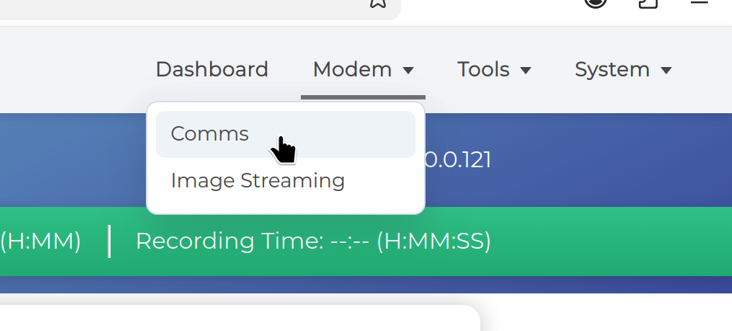
Modem Comms Page in the Popoto Web UI. The Comms page has tabs for TRANSMIT and RECEIVE.
-
On Modem 1 (transmitting modem), select TRANSMIT, then select the Message tab.
-
On Modem 2 (receiving modem), click the RECEIVE tab.
-
Before sending a message on Modem 1, review the Quick Settings. For this test, we'll use the default settings.
- Modem selects the waveform/modem type.
- Power controls transmit power.
- Data Rate selects the modulation scheme and data-rate profile.
- Remote ID identifies the intended receiving modem.
- Local ID identifies the transmitting modem.
- Carrier Frequency sets the acoustic carrier frequency, in Hz.
-
Type a message into the text box then click Send Message. In this example, we'll enter "Hello from Popoto Modem!".
The Command Output displays at the bottom of the Modem 1 screen.
On Modem 2 the Raw Messages panel shows received modem traffic, while the Decoded Messages panel shows successfully decoded payloads.
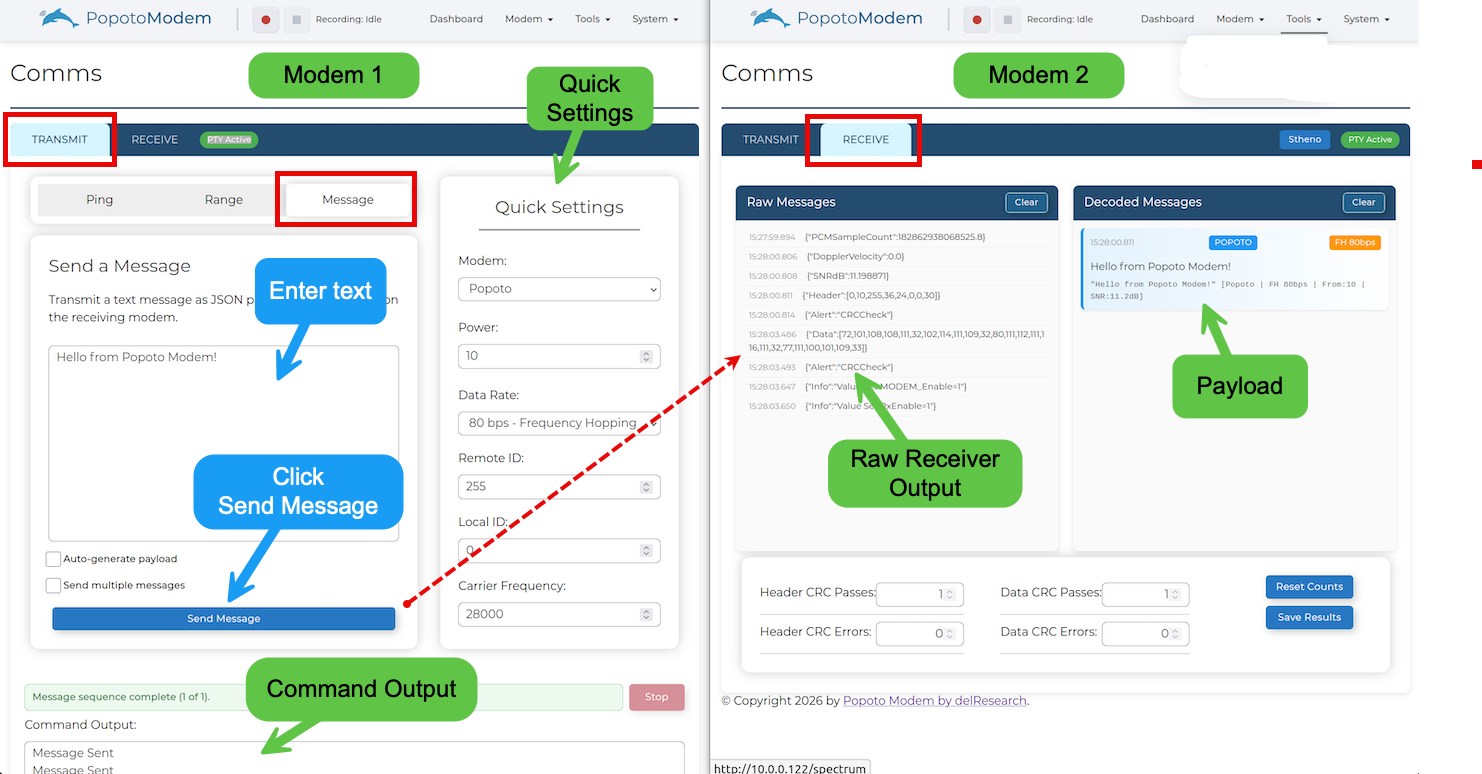
Transmitting a Test Message in the Popoto Web UI. noteIf the message is not decoded, confirm that the modems use compatible quick settings, that the Remote ID is correct, and that the receiver is listening.