Connecting to the Modems
The Web UI is available from a browser at the modem's IP address.
Popoto modems ship with the default IP address 10.0.0.121. If you are using two modems on the same network, assign one modem a different IP address before connecting both modems. See Changing the IP Address for a Popoto Modem.
-
Connect the modem and computer to the same Ethernet network.
noteFor a direct Ethernet connection, the computer may need a static IPv4 address on the same subnet as the modem.
-
Verify the modem responds from a terminal:
ping 10.0.0.121 -
Open a browser and enter
http://followed by the modem's IP address, such ashttp://10.0.0.121/.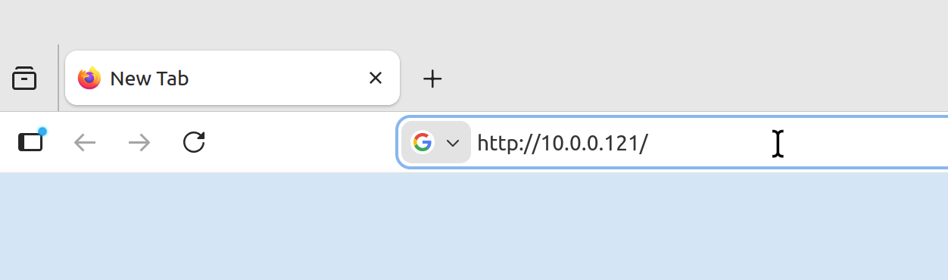
Entering the modem IP address in the browser. noteIf the browser changes the address from http:// to https://, change it back to http:// and reconnect.
The modem dashboard displays the hostname, firmware and UI versions, system time, recording state, and available storage.
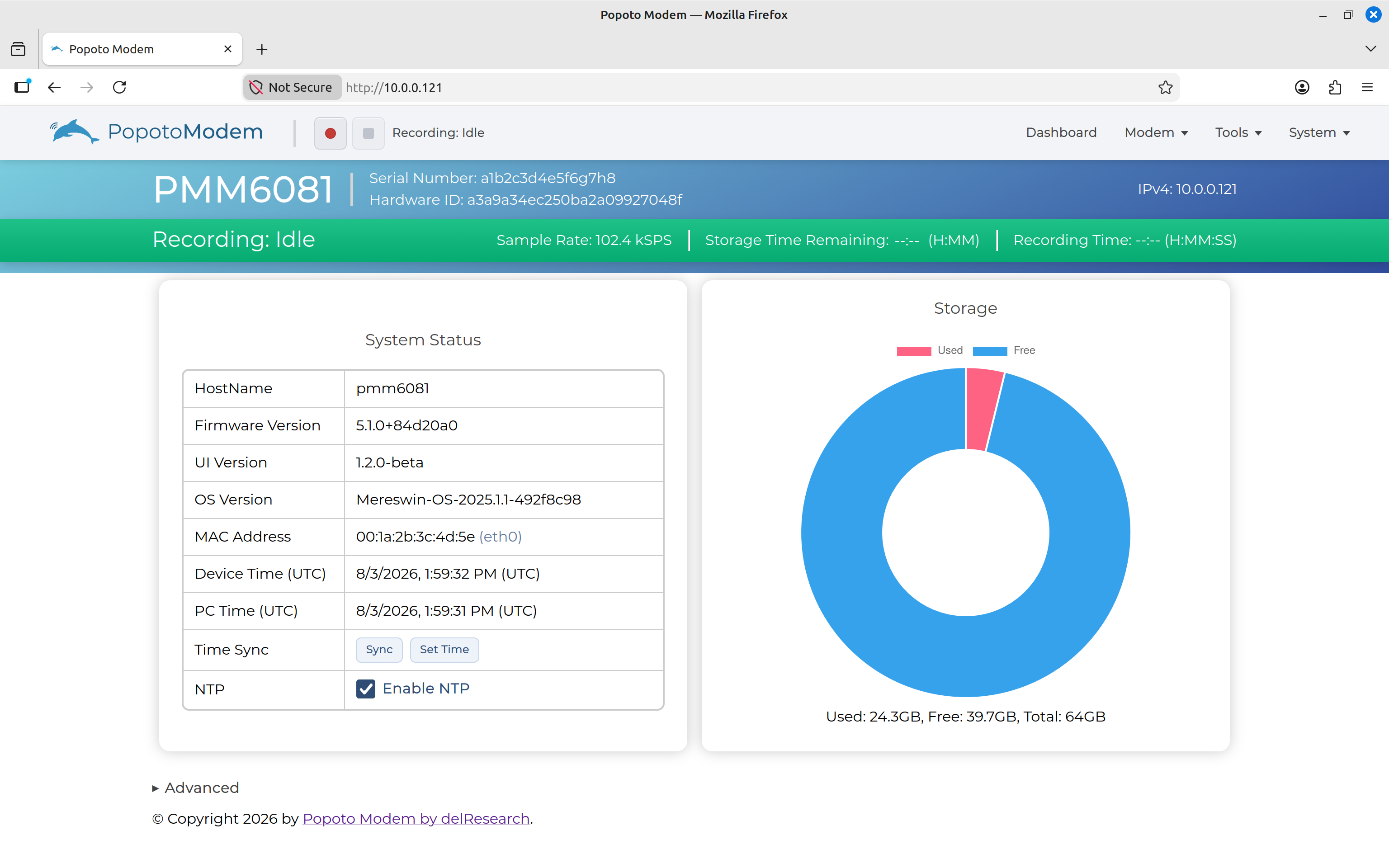
Modem dashboard displaying the hostname, firmware and UI versions, system time, recording state, and available storage. -
For a two-modem test, open a second browser window for the other modem's IP address. Keeping the two windows side by side makes the test easier to follow.
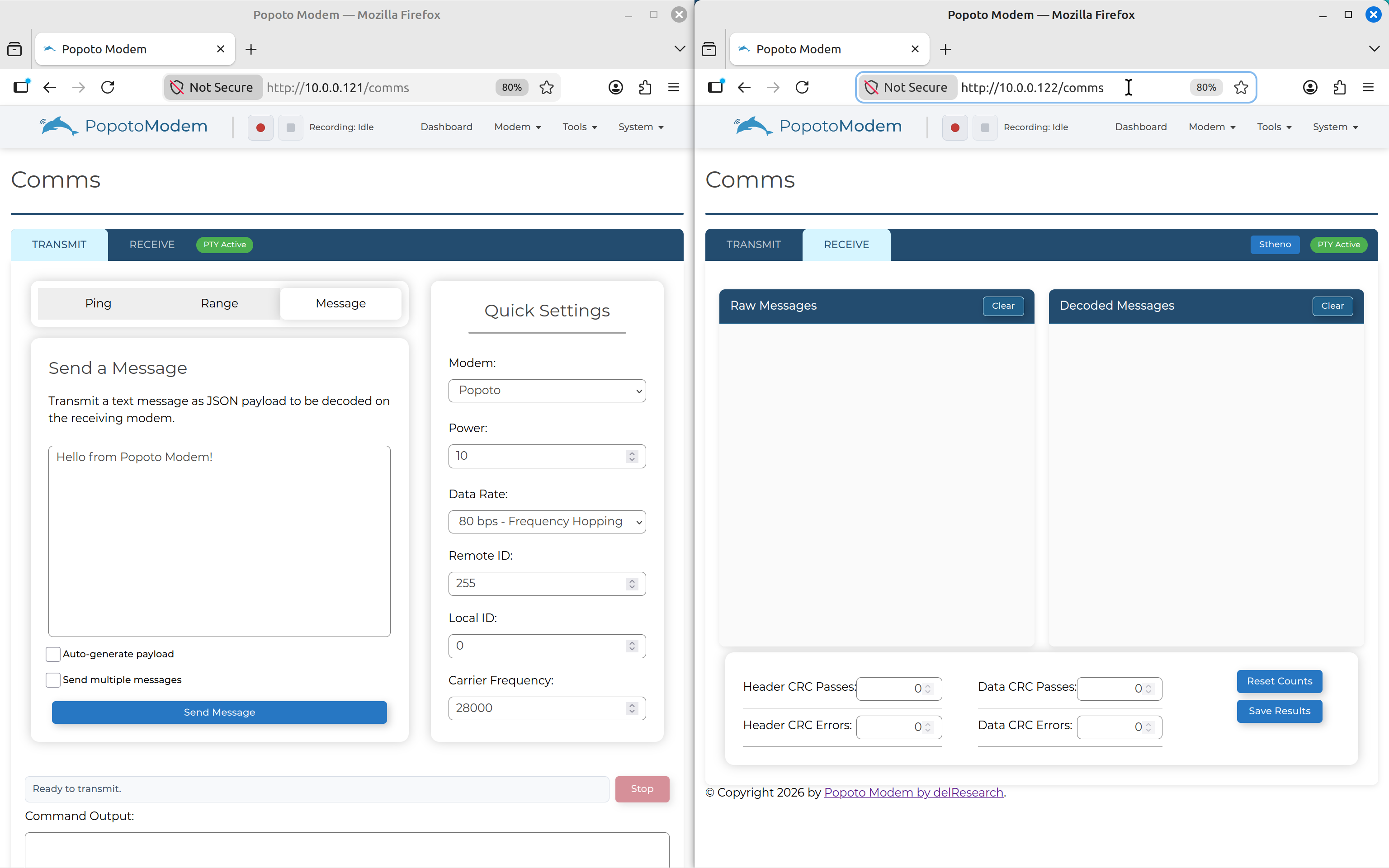
Displaying Modem Browser Windows Side-by-Side.