Sending your First Acoustic Message
First, we'll verify that the two modems can communicate by sending a short test message from Modem 1 to Modem 2.
The Ping and Range tabs on the Transmit page can be used for connectivity and ranging tests in the same test setup.
-
On both modems, select Modem from the NavBar then select Comms.
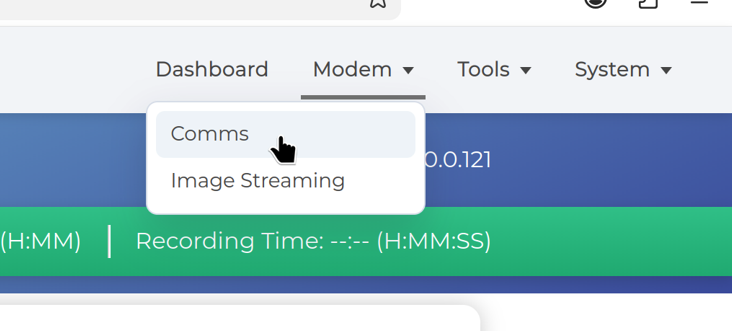
Modem Comms Page in the Popoto Web UI. The Comms page has tabs for TRANSMIT and RECEIVE.
-
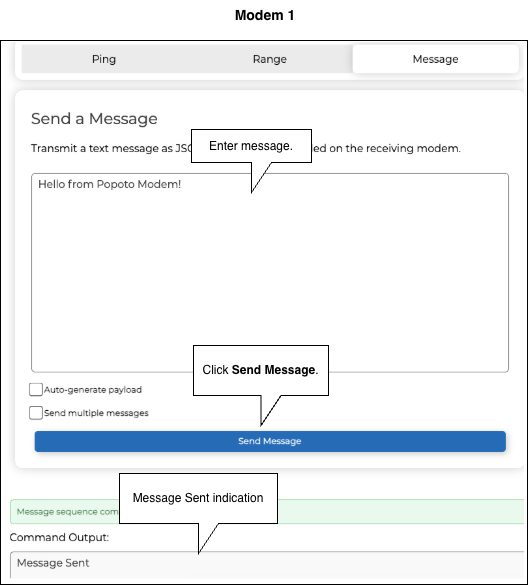
On Modem 1 (transmitting modem), select TRANSMIT, then select the Message tab.
-
On Modem 2 (receiving modem), click the RECEIVE tab.
-
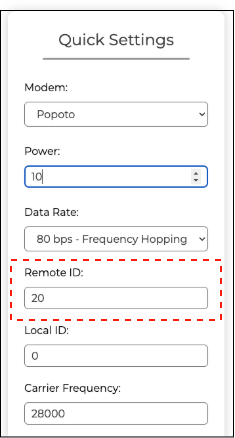
In the Quick Settings panel, change the Remote ID to 20, which we just configured, for Modem 2. Leave all other settings as default.
-
Type a message into the text box then click Send Message. In this example, we'll enter "Hello from Popoto Modem!".
The Command Output displays at the bottom of the Modem 1 screen.
On Modem 2 the Raw Messages panel shows received modem traffic, while the Decoded Messages panel shows successfully decoded payloads.
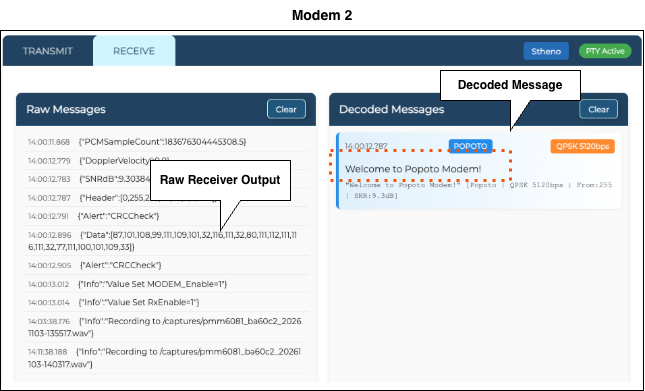
If the message is not decoded, confirm that the modems use compatible quick settings, that the Remote ID is correct, and that the receiver is listening.
Next: Now we'll estimate the distance between modems using the range command.
Continue to Estimating the Distance between Modems.