Managing Audio Recordings
Use the Recordings screen to view and manage audio files stored on the Popoto Modem.
-
Click Tools in the NavBar, then select Recordings.
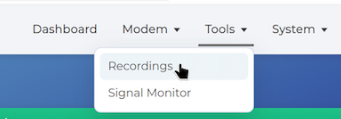
Accessing recordings in the Popoto Web UI. The Recordings screen lists saved WAV files with their size and date.
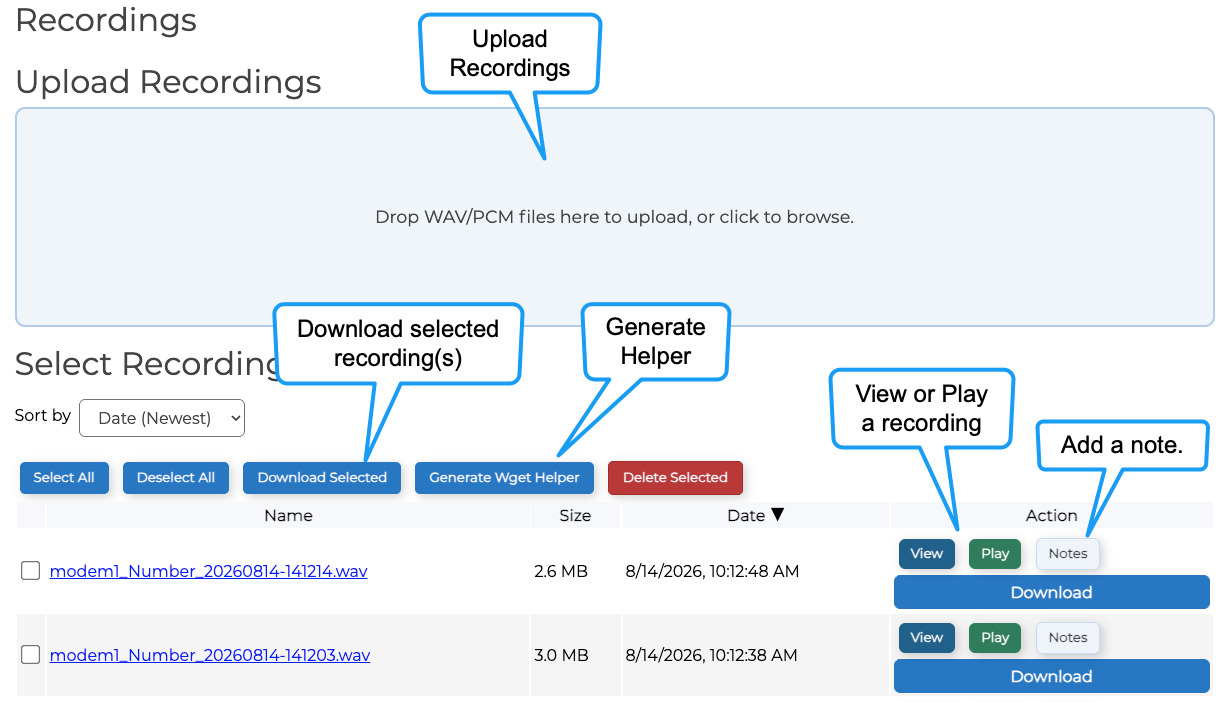
Recordings screen in the Popoto Web UI. -
To upload a recording, click in the Upload Recordings section to launch a browse window or drag the file from your computer into the section.
-
To perform an action on a recording, select the checkbox for one or more recordings and then click the button for the action you want to perform:
- Click View to inspect a recording in the Waveform Viewer.
- Click Play to play the selected recording in the Waveform Viewer.
- Click Download to download the selected recording or create a WAV archive.
- Click Delete to delete the selected recording.
- Click Add Note to add a note about the recording.
- Click Generate a Wget Helper to generate a Wget Helper.
Viewing a Recording
The Waveform Viewer displays the waveform and spectrogram for the selected recording.
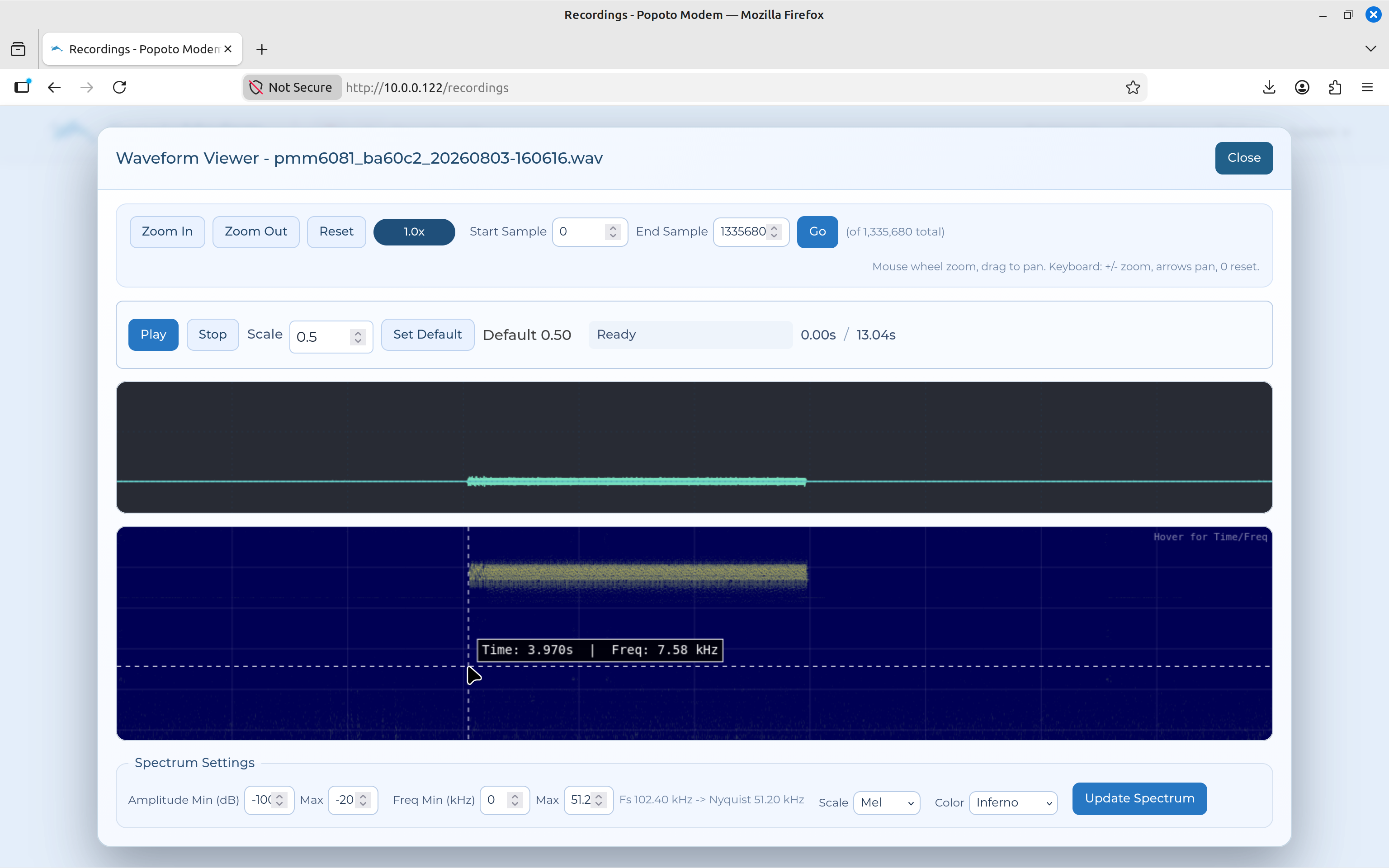
Use the zoom, scale, and display controls to inspect the recording. Click Close to return to the Recordings screen.
Generate Wget Helper
To generate a Wget Helper for a recording, select the recording and click Generate a Wget Helper. This will provide you with a command that you can use to download the recording using Wget.
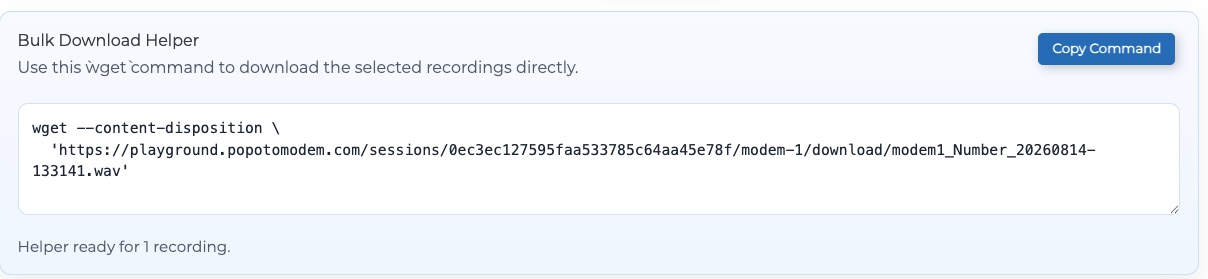
After generating the Wget Helper, you can copy the provided command and use it in your terminal to download the selected recording.
Adding a Note
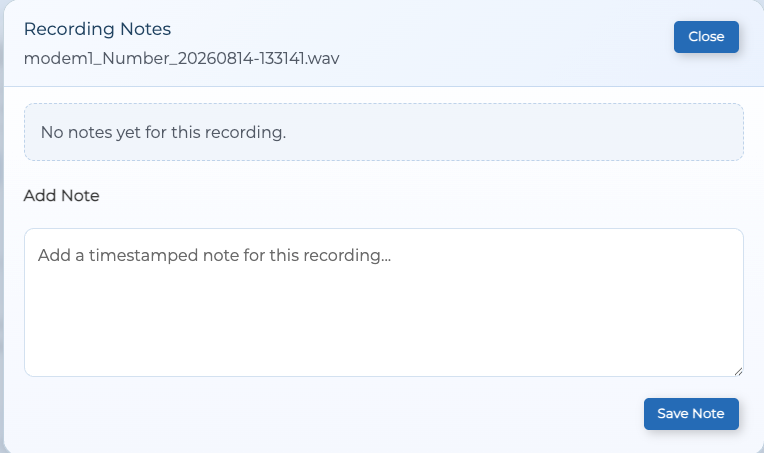
To add a note to a recording, select the recording and click Add Note.